 Image display lies at the core of most any image processing
application. With Mira, displaying images is only one of many ways of
understanding your data. There are also 1-D and 3-D visualization
capabilities, contour plots, and other tools immediately available for a
displayed image.
This Brief describes how Mira displays 2-D images.
Image display lies at the core of most any image processing
application. With Mira, displaying images is only one of many ways of
understanding your data. There are also 1-D and 3-D visualization
capabilities, contour plots, and other tools immediately available for a
displayed image.
This Brief describes how Mira displays 2-D images.
Mira's image display capabilities go well beyond the options provided by other software packages. Features such as smooth, real time contrast and gamma stretching of palettes, infinitely versatile pseudo-color palette enhancement, and high-speed image animation are just some of the many outstanding image display tools in Mira. All Mira platforms can display numeric data having 1 to 4 integer bytes per pixel and 4 or 8 real bytes per pixel. All Mira platforms also can display 24 and 48 bit per pixel color images. In addition, Mira Pro x64 can display color images with ultra high bit depth, including these pixel types: 4 byte per channel integer and real, 8 byte per channel real. See the Brief "UHDR Imaging in Mira".
In the early 1990s, we introduced the concept of using an image set as the native display object. Every Image Window inherently supports display of a stack of images with no additional preparation — just open more than 1 image at once and an image set is displayed, thus making available a large array of special features that operate on image sets. A single image is just an image set of 1 member. Nearly all Mira commands can be set to operate on the complete image set or only the topmost image.
The first step of displaying a numeric (non RGB) image involves applying a transfer function to slice the data into palette indices. A wide selection of styles and stretch models is provided. A recent addition is the Boost transfer function option which instantly expands the contrast to reveal all of the image structure and works with all other transfer function settings, including the live-update mode. Following the transfer function, the image data are passed through a grayscale or pseudocolor palette. Interactive contrast, brightness, and gamma stretching are incredibly fast and smooth. If you are animating a stack of, say, 50 images, then contrast stretching and palette adjustments are immediate while the animation proceeds through the stack.
The Mira image display window is designed to be efficient, informative, and intuitive. Each image window can hold an image set of 1 to n images, where n is limited only by virtual memory. Mira users routinely open hundreds of images in a single window and efficiently work with them as a set.
Examples
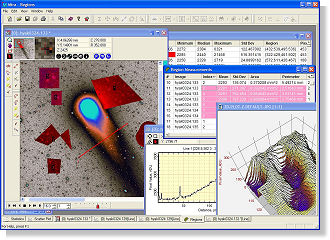
 At
left is a Mira Pro Image window doing aperture
photometry. The top border shows the Image Toolbar, which is a local command center
that shows live thumbnail and tracking views, world coordinates, pixel coordinates, and
the image value
at the pointer. Left side buttons magnify,
pan, and toggle roam and cursor modes for the dedicated image cursor
(red). Other buttons measure centroid positions, statistics
in a rectangle, distance and angle, plot the image value between two points, adjust the
transfer function, and edit image header information.
The 3 blue buttons toggle between the top image and all images
for processing (p), measuring (m), and graphing (g) operations when
the window displays an image stack. The Image Toolbar helps keep your
focus on the image of interest.
At
left is a Mira Pro Image window doing aperture
photometry. The top border shows the Image Toolbar, which is a local command center
that shows live thumbnail and tracking views, world coordinates, pixel coordinates, and
the image value
at the pointer. Left side buttons magnify,
pan, and toggle roam and cursor modes for the dedicated image cursor
(red). Other buttons measure centroid positions, statistics
in a rectangle, distance and angle, plot the image value between two points, adjust the
transfer function, and edit image header information.
The 3 blue buttons toggle between the top image and all images
for processing (p), measuring (m), and graphing (g) operations when
the window displays an image stack. The Image Toolbar helps keep your
focus on the image of interest.
On the left border is the Aperture Photometry Toolbar. This controls the aperture photometry mode for this window, including marking, moving, calibrating, adjusting apertures, and so on.
The right border of the window has a color map which displays the current palette mapping. As shown here, the palette is inverted (black is at top) to display the image as a negative. The color map is a hot region; mouse-down to stretch the contrast, brightness, and gamma, double-click to open the palette manager, or right double-click to reset palette changes.
 This
example shows a familiar 8-bit luminance image of "blobs".
The image is displayed using the a thresholding palette named "Level Slice"
which uses an adjustable red range to delimit a specific range
of luminance values. This image also is spatially calibrated (i.e.,
it has a world coordinate calibration) using inch units. Measurements, plots,
and coordinates are thus available in both inch units and pixel units.
This
example shows a familiar 8-bit luminance image of "blobs".
The image is displayed using the a thresholding palette named "Level Slice"
which uses an adjustable red range to delimit a specific range
of luminance values. This image also is spatially calibrated (i.e.,
it has a world coordinate calibration) using inch units. Measurements, plots,
and coordinates are thus available in both inch units and pixel units.
On the left window border is the Point Measurements Toolbar, which is the user interface to the Point Measurement package in Mira Pro x64. This toolbar shares many common buttons with other measurement toolbars, like those for measuring distances, angles, and others. In Marking mode (top button), a mouse click adds a marker and interrogates the image at the sub-pixel position of the click. Results are listed in a Report window, which contains a table that can be manipulated in various ways for comparing and archiving its values. If the Image window contains an image set, you have the option to measure the current image or all images, depending on the state of the Measure flag (the (m) button on the Image Toolbar). This is typical of the way interactive measurements work in Mira.
This view shows an image window with a stack of 4 32-bit real images displayed with a grayscale palette. Animation is one of many impressive Mira features. It is indispensable for comparing images and examining images for differences or transient features. Mira's capabilities go well beyond "stacking", availing all image processing and analysis tools to the stack. No stack preparation is required, and the images may have any bit depth or any supported image format.
 The bottom
border shows the Animation Control Toolbar which provides controls
for switching between images (blinking) and animating the image set at
a specified frame rate. This toolbar is automatically opened when the
window has more than 1 image.
The bottom
border shows the Animation Control Toolbar which provides controls
for switching between images (blinking) and animating the image set at
a specified frame rate. This toolbar is automatically opened when the
window has more than 1 image.
The left window border shows the Image Set Toolbar. This toolbar provides local control for adding, inserting, deleting, and swapping images in the image set. A typical GUI concept in Mira, these buttons duplicate menu commands so your focus can stay on target. [Note: Mira AL and AP provide only menu commands but no toolbar].